
How It Works
Files Suck works like the filing cabinet in your office. Every company gets its own cabinets, with drawers from A to Z and folders in each drawer. Here it is in three steps.
Step 1
Scan It
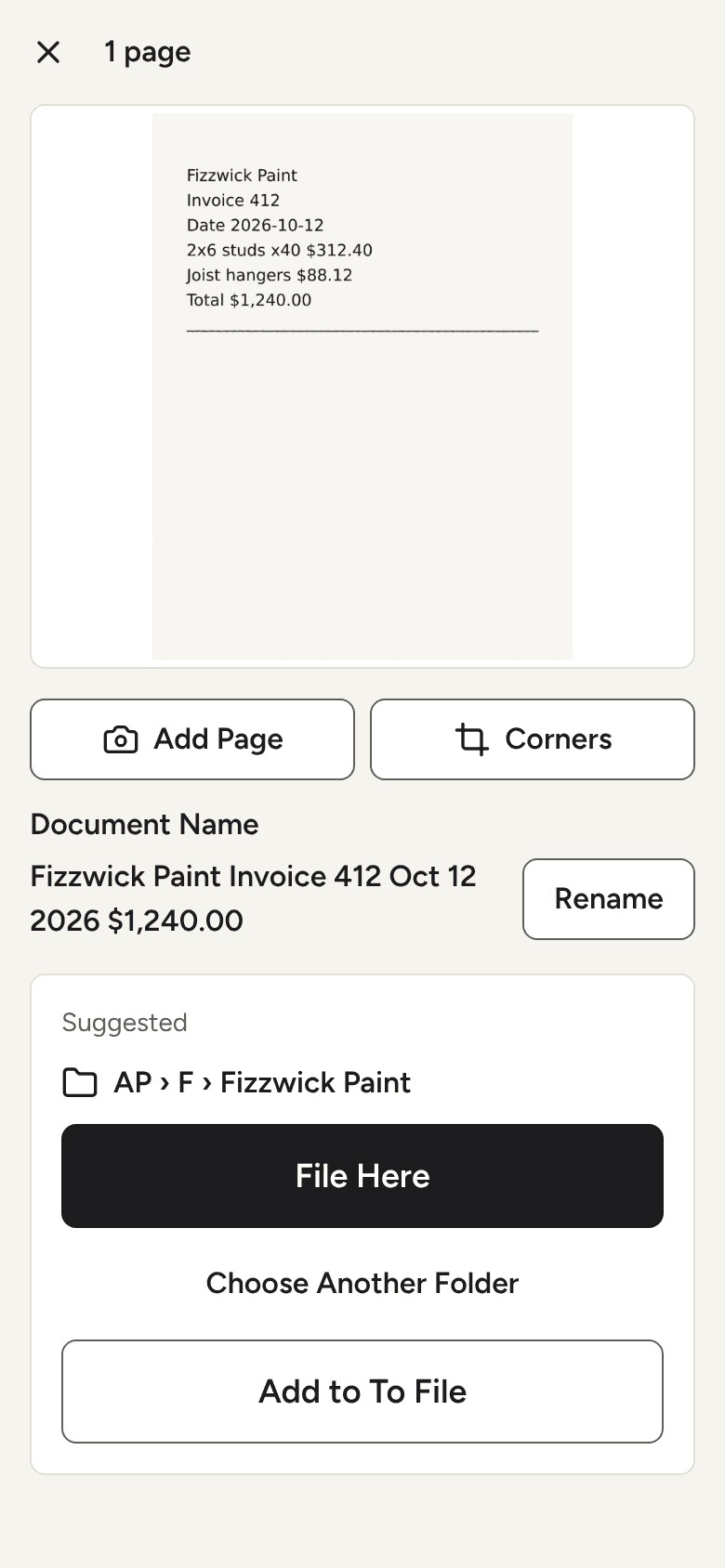
In the iPhone app, open a folder and tap Scan. Your camera opens: take a photo of each page. Files Suck finds the edges and straightens the page, and the pages are saved as one PDF.
Already have the files? Tap Upload and pick them. PDFs, JPGs, PNGs, and iPhone photos work, up to 25 MB each. On a computer, you can drag them onto the page.
Have an office scanner? Connect its folder once. New scans come in on their own while Files Suck is open in Chrome or Edge on a computer. Set up your scanner.
Step 2
File It
Scan or upload inside a folder, and it's filed right there. From the company screen, it waits in Filing Basket until you have a minute.
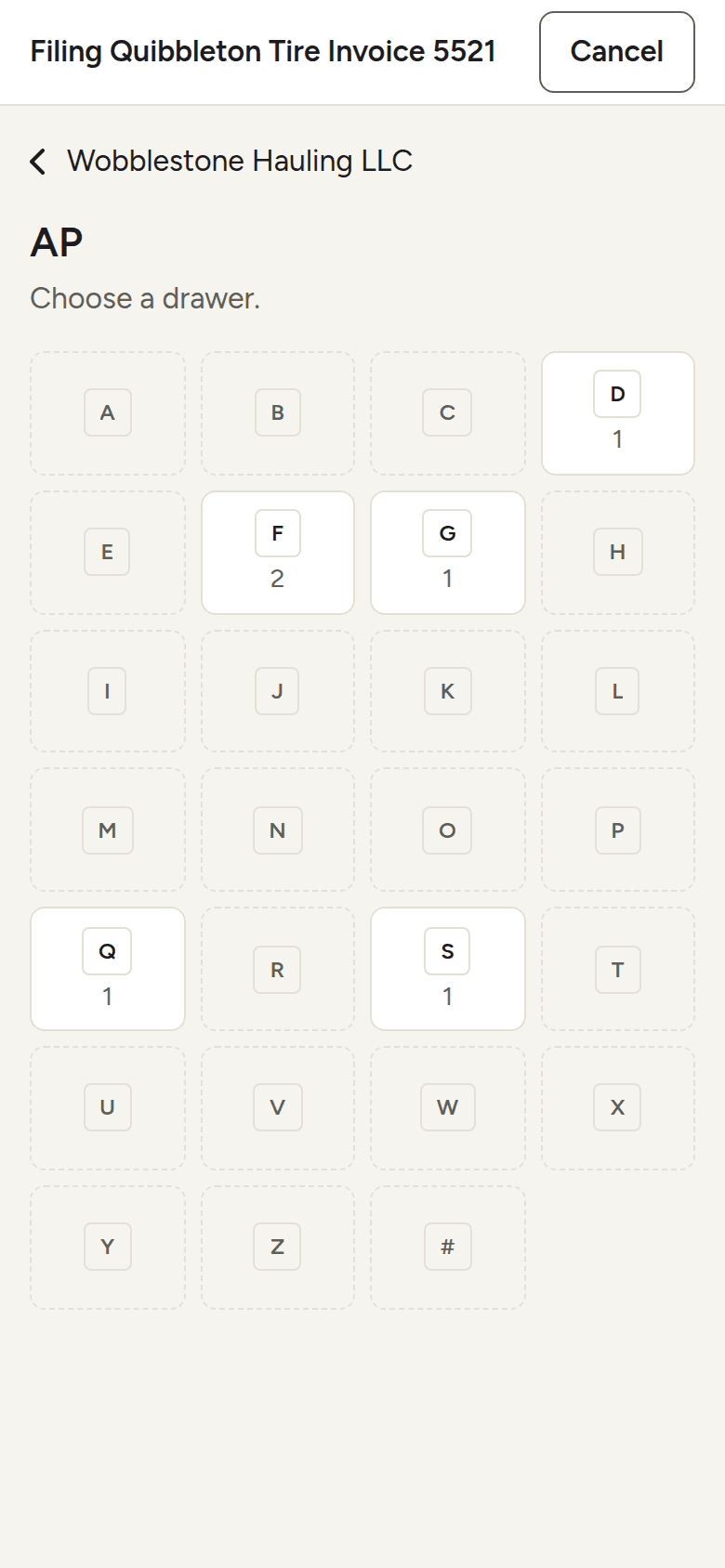
To file it, tap File It. Then pick the cabinet, the drawer, and the folder, like walking up to the cabinet. New folders go in the right drawer, in A to Z order. Put something in the wrong place? Refile it. It remembers where you filed similar names and suggests the same folder.
Pages out of order? Turn, move, or split them with Edit Pages. Scanned a two-sided stack? Combine Fronts and Backs puts every page in order. Every earlier version is kept.
Step 3
Find It
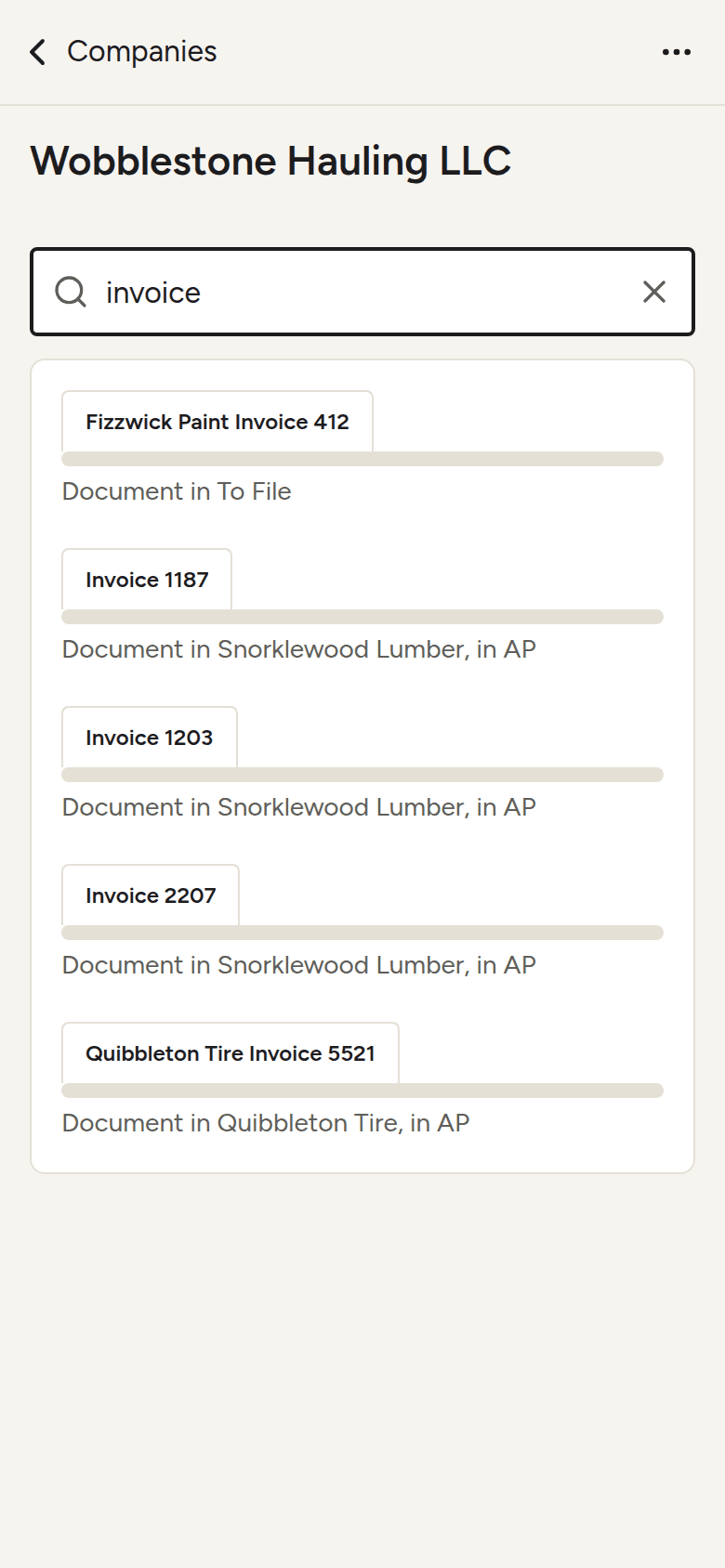
Type a few letters in the search box at the top of a company, a cabinet, or a folder, or on Your Companies to look everywhere. Every cabinet, folder, and document with a matching name comes up, with where it lives, and documents with those words inside them, with the words around the match. Tap one to view or download it.
A good name still helps: it's what you see first.
Each document's History shows who added, viewed, changed, or moved it, and when.
Step-by-step details are in Help. Big questions, like who can see your files, are in the FAQ.
Start Free Today
No card needed. 1 GB per business.
Already have an account? Sign in